How a Codeboard project works
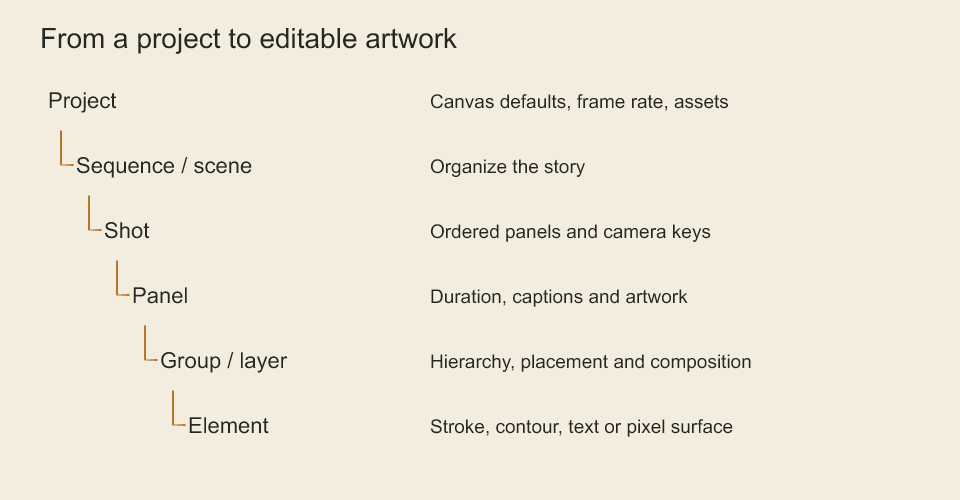
Groups can nest. Each level owns a different kind of edit; the diagram groups sequence and scene together for readability.
Start here when a snippet mentions a panel, layer, frame, or drawing ID that you have not created yet. The quickstart creates a complete first project; this page explains the objects you will edit as it grows.
From a project to a mark
| Object | Owns | Example |
|---|---|---|
| Project | Canvas defaults, frame rate, assets and production operations | One short film |
| Sequence | A collection of scenes | The opening sequence |
| Scene | A collection of shots | A room interior |
| Shot | Ordered panels and camera keys | A close-up |
| Panel | Artwork, duration and captions | A held reaction |
| Group | Child layers and their shared placement | A character |
| Layer | Raster or vector elements | Character ink |
| Element | One stroke, contour, text item or pixel surface | An eyebrow |
You can start with project.addScene(...) without explicitly creating a sequence. Groups do not draw by themselves: add layers and elements inside them. Panel captions describe artwork but do not create it.
import { StoryboardProject, pathCommands } from 'codeboard-studio';

const project = StoryboardProject.create({
  title: 'A mark', width: 640, height: 360, frameRate: 24,
});
const shot = project.addScene('Room').addShot('Reaction');
const panel = shot.addPanel({ id: 'reaction', durationFrames: 48 });
const character = panel.addGroup('Character', { id: 'character' });
const ink = panel.addVectorLayer('Ink', { id: 'ink' }, character.id);
const contourId = ink.path(pathCommands('M 220 240 L 320 100 L 420 240 Z'), {
  fill: '#b77528',
});
This creates artwork in memory. Follow saving and rendering to write files. In task-guide snippets, project is a StoryboardProject, panel is a panel handle, and other handles must be created or looked up before use. Snippets within a guide demonstrate operations; they are not all intended to be concatenated into one script.
Choose the representation you need to edit
| Representation | What stays editable | Use when |
|---|---|---|
| Replayable raster stroke | Pen samples, brush and paint settings | You need textured drawing or a later brush adjustment |
| Vector contour or stroke | Geometry, fill and stroke properties | You need precise silhouettes or contour edits |
| Pixel surface | RGBA pixels and bounded patches | You need image imports, selections or pixel painting |
Raster strokes and pixel surfaces can share a raster layer, but they have different editing operations. A PNG import does not become vector contours. Outlining a vector stroke converts it to a filled contour; it no longer responds to stroke-width edits in the same way. See drawing and pixels.
Frames are positions, durations are counts
At 24 fps, a 48-frame board panel occupies two seconds. The first panel spans frames 0 through 47; the next starts at 48. Board layer keys, camera keys and audio placement use global frames, including in later panels.
Studio animation has a separate time model. A shot animation owns its local artwork, keys, camera and exposures. An editorial clip places a range of that animation into an edit; its position is not a replacement for the shot's local frame number. Studio audio retains source sample ranges and uses explicit rational placement. Moving an editorial cut does not mean moving all of the source shot's keys. See animation and audio for the operations in each domain.
Ranges use an exclusive end: [12, 24) includes 12 through 23. To request the last frame of a 48-frame project, render 47, not 48. Pen-point time is in milliseconds and controls brush speed dynamics; it is separate from animation frames.
| Value | Unit |
|---|---|
| Canvas position, brush size, layer translation | Canvas units |
| Layer/camera rotation | Radians |
| Pressure, opacity | 0 to 1 |
| Board keys, panel durations, board audio trims | Integer frames on the global board timeline |
| Shot animation keys and drawing holds | Integer frames local to that animation |
| Editorial position and source range | Frames in their declared editorial/shot rate domains |
| Studio audio source trim | Integer samples at the declared source sample rate |
| Pen sample time | Milliseconds |
| Pixel patch coordinates | Source-image pixels |
Drawing changes and movement are separate
Use drawing substitutions to choose which child drawing is visible. Use transform keys to move, rotate or scale that artwork. A drawing key holds until the next one; it does not generate an in-between pose. A layer exposure limits visibility to a range and does not choose a drawing. See animation.
Camera keys change the shot's framing. Layer keys change artwork placement. The final image combines both, so use coordinate conversion to map a visible correction back into a transformed layer.
IDs survive renaming
Give important panels and layers stable IDs and retain IDs returned by creation calls. Names and panel numbers are labels; they are not reliable identifiers for later revisions. Read/query methods return inspection data. Change artwork with a handle or a production operation rather than mutating a query result.
Decide what owns the next revision
For generated artwork, edit the authoring source and regenerate only its designated outputs. For a project that has been independently revised, open the latest .cboard and edit that state. Rerunning an older generator can discard those revisions.
A .cboard retains editable artwork and embedded assets. A PNG, PDF or MP4 is an output for viewing or delivery. Keep source, lockfile, assets and the project together when handing work to another person. See projects and revisions for stale-write protection, named revisions and asset handling.
Continue with the authoring and revision workflow, or use what Codeboard can do to choose a task guide.
Codeboard by Nonom Friedman
Explore Nonom Library